Wristbeat · Guide
Set up Wristbeat Bridge
Wristbeat Bridge is a free Mac app that shares the music in your Music library with Wristbeat. Set it up once, and your playlists download to your watch over your home Wi-Fi.
What you need
- A Mac with macOS 13 Ventura or later (Apple silicon or Intel).
- Music in the Music app that you own: purchases, CD rips or other DRM-free files.
- Your Mac and your Apple Watch on the same Wi-Fi network.
1. Download and install
Wristbeat Bridge for Mac
Version 1.0.2 · macOS 13 Ventura or later · Apple silicon and Intel · 2.0 MB · Free
If Safari asks whether to allow downloads from widget.foo, click Allow. Then open the downloaded file and drag Wristbeat Bridge onto the Applications folder.

2. Open Bridge
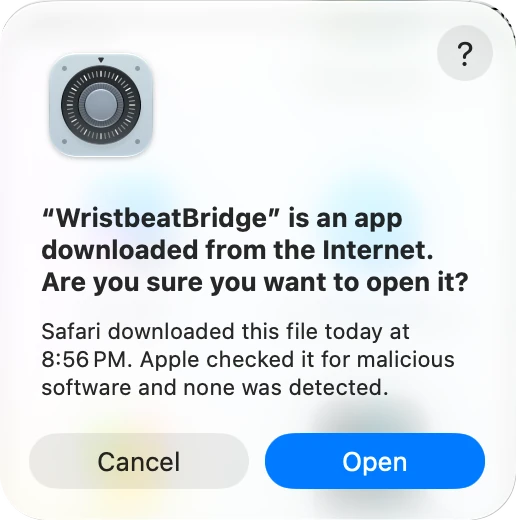
- Open Wristbeat Bridge from your Applications folder. macOS checks the app and asks whether you're sure you want to open it. Click Open. You only see this the first time.
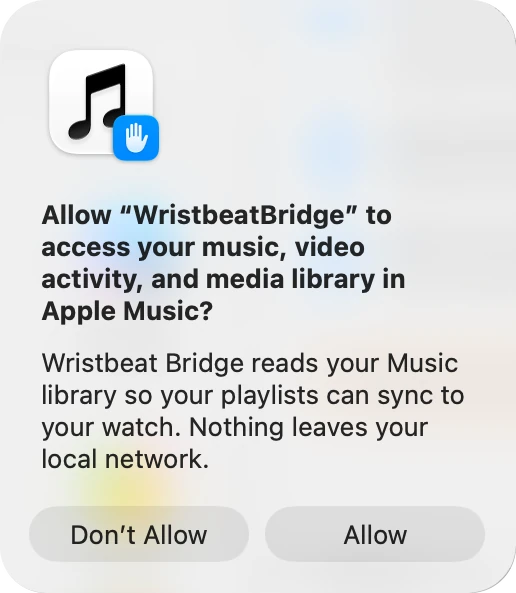
- Let Bridge read your Music library. Click Allow when macOS asks. Your music stays on your Mac and your home network.
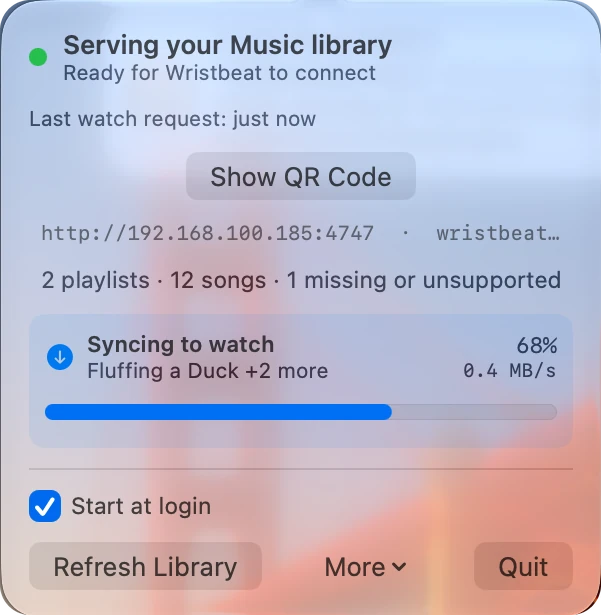
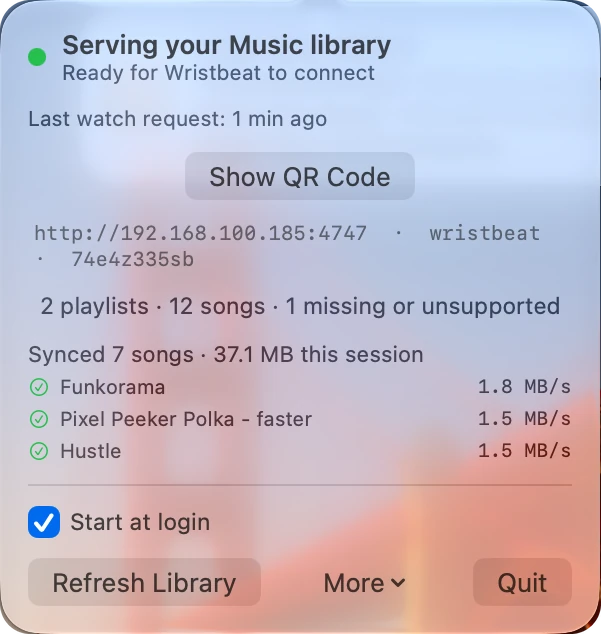
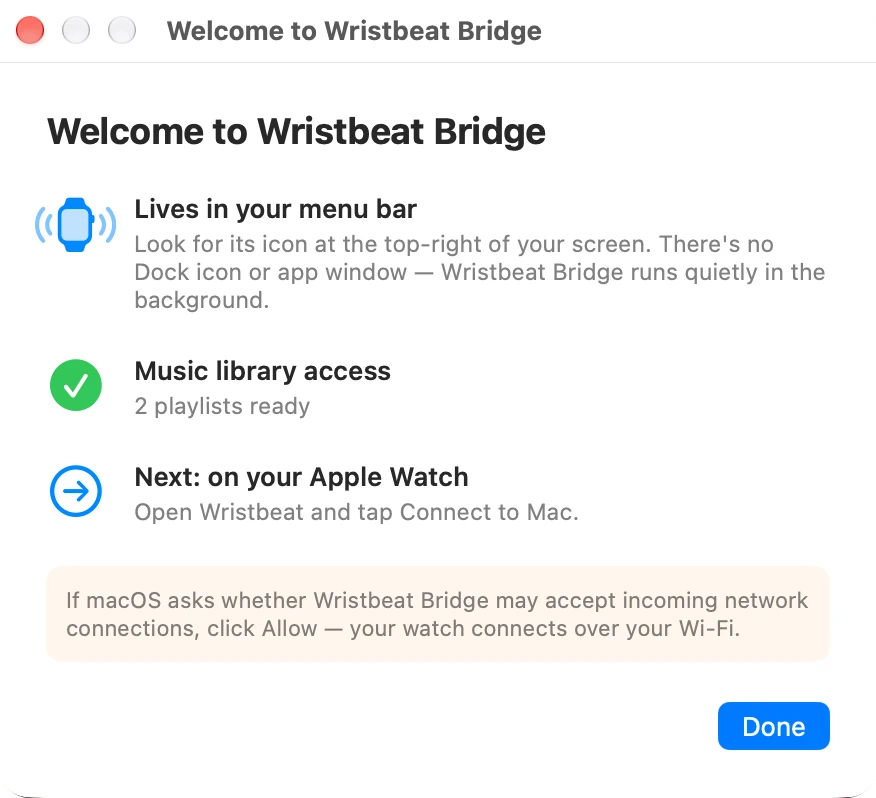
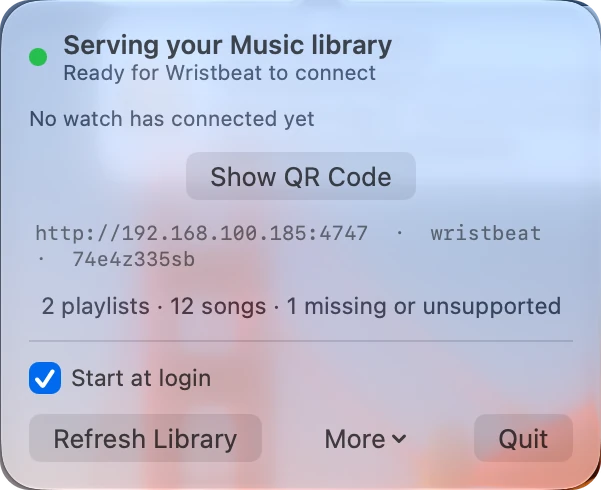
- Find Bridge in the menu bar. A welcome window confirms that Bridge can see your playlists. After that, Bridge lives in the menu bar at the top right of your screen. There's no Dock icon. Click its icon to see what it's doing.
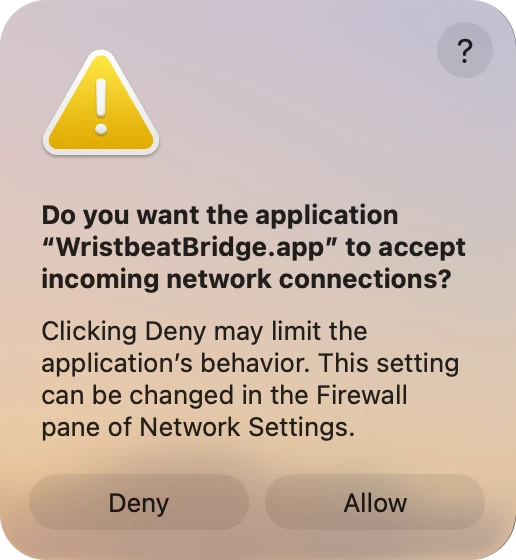
- If macOS asks about incoming network connections, click Allow. Most Macs don't ask. If yours does, your watch needs this to download music from your Mac.
3. Connect your watch
- Open Wristbeat on your watch. It looks for Bridge on your network.
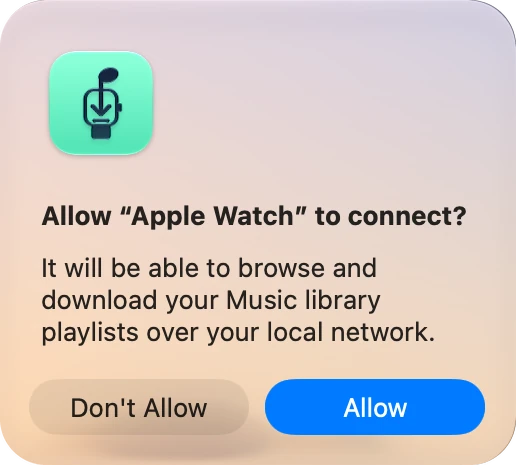
- Click Allow on your Mac when Bridge asks whether your watch may connect. That's it: your watch and Mac are paired. If your watch went to sleep while you waited, open Wristbeat again and it finishes connecting.
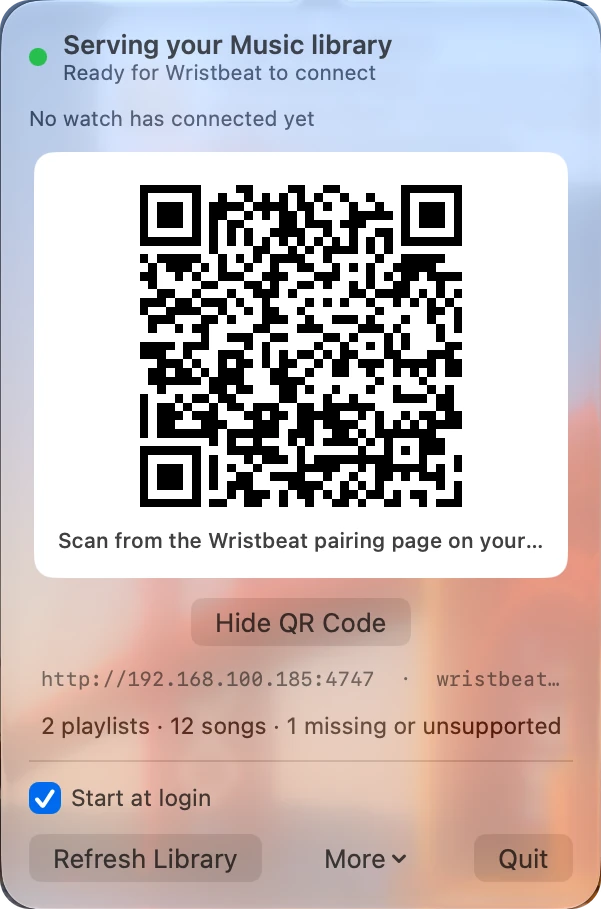
- If the watch doesn't find Bridge, choose Pair with phone instead on the watch. Then click the Bridge icon in the menu bar, click Show QR Code, and scan the code with your phone.
4. Choose what to sync
Wristbeat shows the playlists from your Music library. Choose one and Wristbeat saves every song to the watch.
- Make a playlist for your watch. Create it in the Music app on your Mac, for example "Run" or "Commute". It appears in Wristbeat on the next sync.
- Change it any time. Add or remove songs in the Music app, and Wristbeat picks up the changes on the next sync.
- Download fast. Put the watch on its charger, near your Wi-Fi, with the watch's Bluetooth off. Why this helps.
What Bridge can share
Bridge shares the music you own: purchases, CD rips and DRM-free downloads. It can't share:
- Apple Music subscription songs. They're protected so they only play in Apple's own apps.
- Songs that aren't on your Mac, such as cloud-only songs or files that have moved.
Bridge skips these and shows how many it left out.
Day to day
- Bridge looks after itself. It starts when you log in and keeps itself up to date.
- Keep your Mac awake while your watch downloads, on the same Wi-Fi network as the watch. Once songs are on the watch, you don't need the Mac to play them.
- See what's happening. Click the Bridge icon in the menu bar to see what's syncing and how fast. When it's done, it lists the songs it sent.