Getting started with Wristbeat
Set Wristbeat up once at home. After that you only need your watch and headphones.
What you need
- Apple Watch Series 4 or later, running watchOS 10 or later.
- A source for your music: Wristbeat Bridge on a Mac with macOS 13 Ventura or later, or a Navidrome or other Subsonic-compatible music server (how to set one up).
- Bluetooth headphones or a speaker to listen on.
1. Connect your music
Open Wristbeat on your watch. It looks for Wristbeat Bridge on your network and shows a code you can scan with your phone.
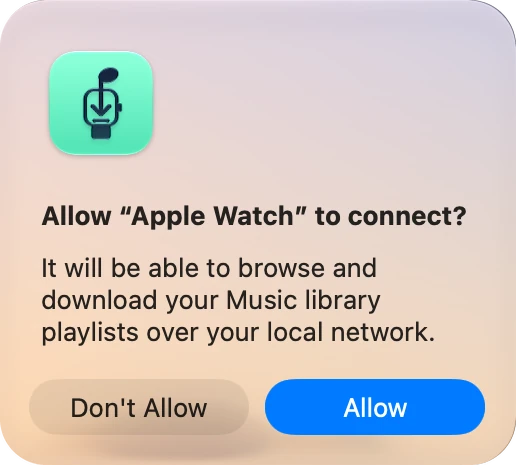
Install the free Mac app, then click Allow on your Mac when your watch asks to connect. Bridge shares the music in your Music library. Bridge setup guide.
Scan the code on the watch with your phone and enter your server address, username and password on the page that opens. They're encrypted so that only your watch can read them. How to set up a server.
With Bridge, your Mac asks whether your watch may connect. Click Allow.
2. Download a playlist
Choose a playlist and Wristbeat saves every song to the watch. For a big playlist, put the watch on its charger, near your Wi-Fi, with the watch's Bluetooth off. It downloads much faster that way, and you can lower your wrist while it works.
3. Connect headphones
Wristbeat plays through Bluetooth headphones or a speaker.
- AirPods: open the case near your watch. If they're set up on your iPhone, they usually appear on the watch automatically.
- Other headphones: on the watch, open Settings → Bluetooth, put the headphones in pairing mode, and tap them when they appear.
4. Leave your phone at home
Tap Play. Your music now plays from the watch with no phone or internet needed. Swipe up for the next song, and turn the Digital Crown to change the volume.
Next steps
Habits that make Wristbeat faster to use and kinder to your battery.
Read the tips →Answers to common setup, sync and playback problems.
Find a fix →See what we're working on and suggest what comes next.
See the roadmap →